

Are you wasting time between emails, random notes, and WhatsApp messages to organize teamwork?
Google Workspace has a little-known but very powerful feature: assigning tasks directly from chat.
And best of all, you don’t need to install anything new.
What Do You Need?
Just a Gmail account and access to the Chat tab in your inbox.
This feature is included in Google Workspace (formerly G Suite) and can be used in both personal and business versions.
Step-by-Step: How to Assign Tasks from Google Workspace Chat
Here’s how you can do it in just a few minutes:
Step 1: Open Gmail and Go to the Chat Tab
In Gmail’s left sidebar menu, look for the Chat tab.
(If you don’t see it, you can activate it from your settings.)
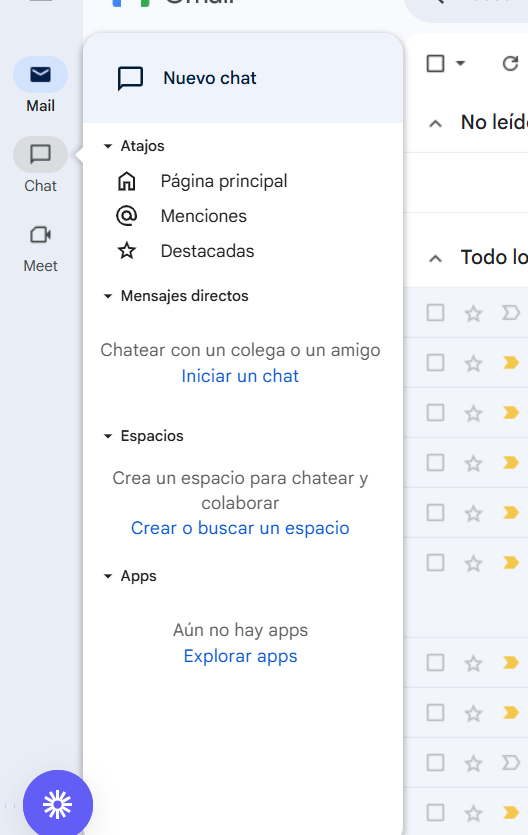
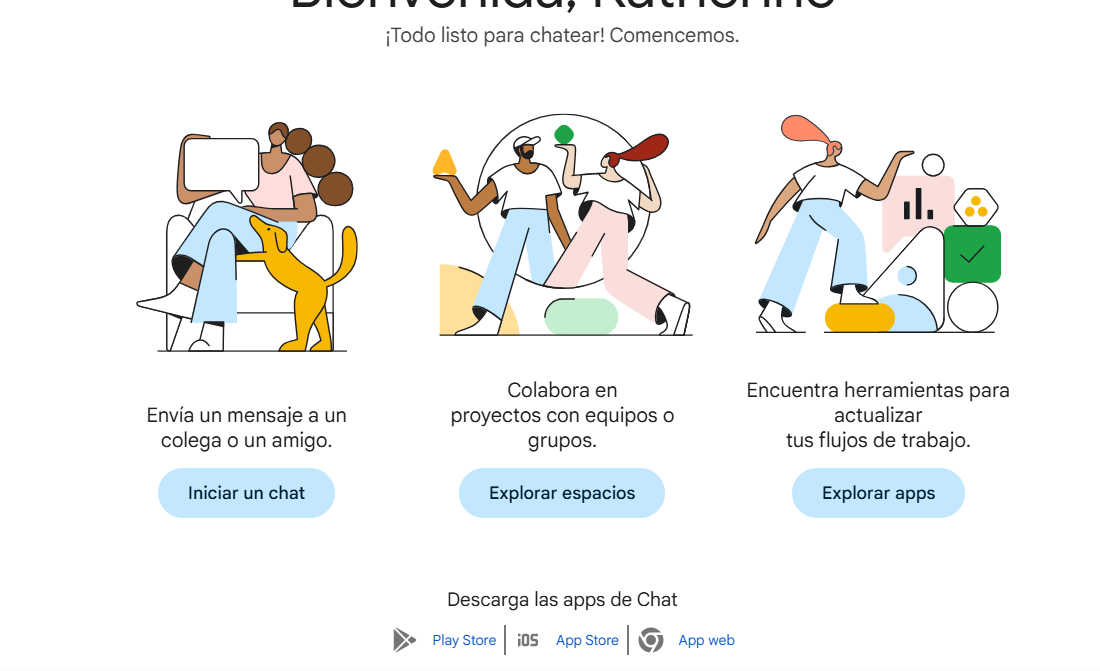
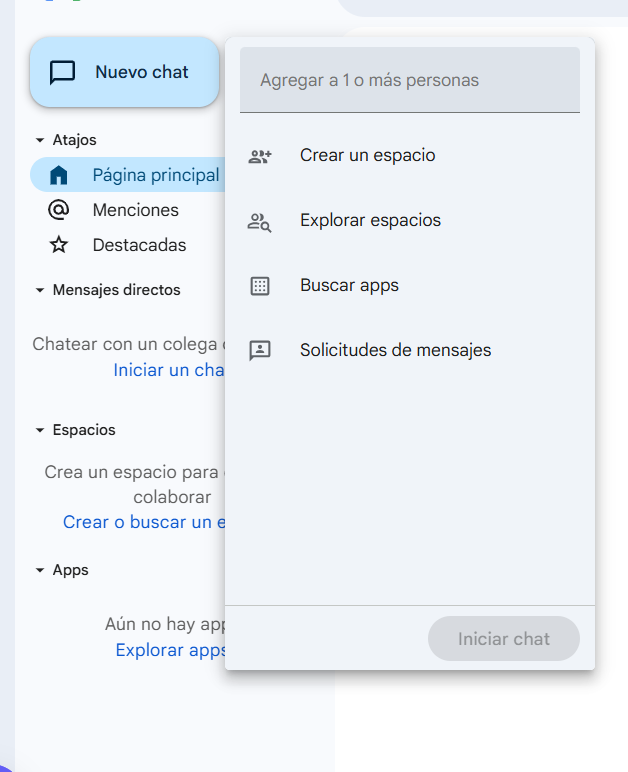
Step 2: Click “New Chat” and Select “Create Space”
Here you can create a new workspace called a “Space.”
It’s ideal for teams, projects, committees, or clients.
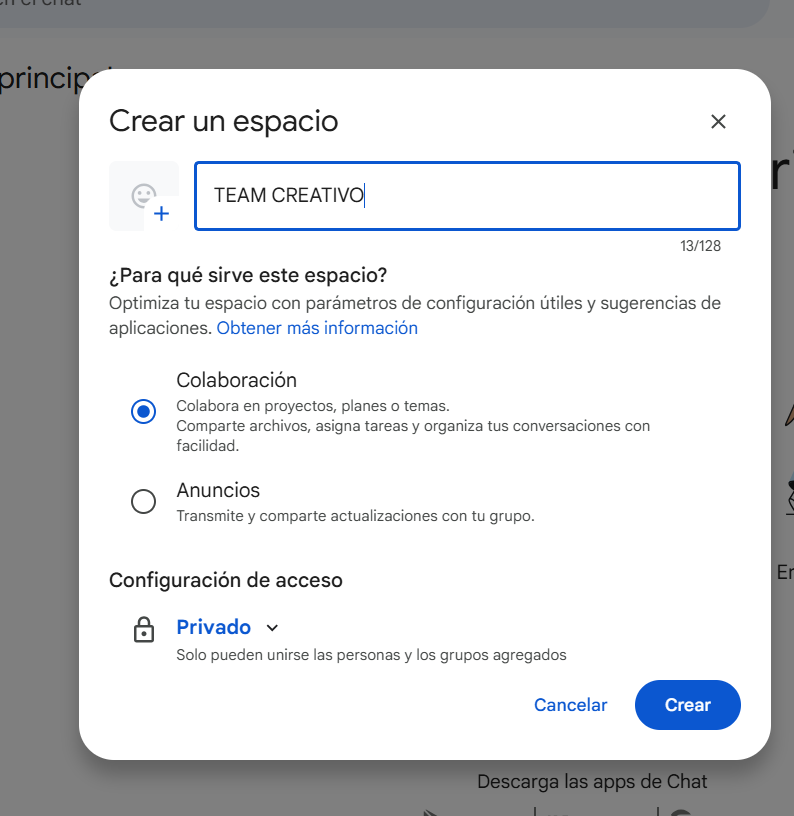
Step 3: Name Your Space and Set Privacy Options
Give your space a name (for example: “Corporate Event 2025”),
and choose whether you want it to be private or visible to others in your domain.
Step 4: Open the Space and Click on “Tasks” (Top Section)
Here’s where the magic happens.
Click on Tasks to start organizing what each member needs to do.
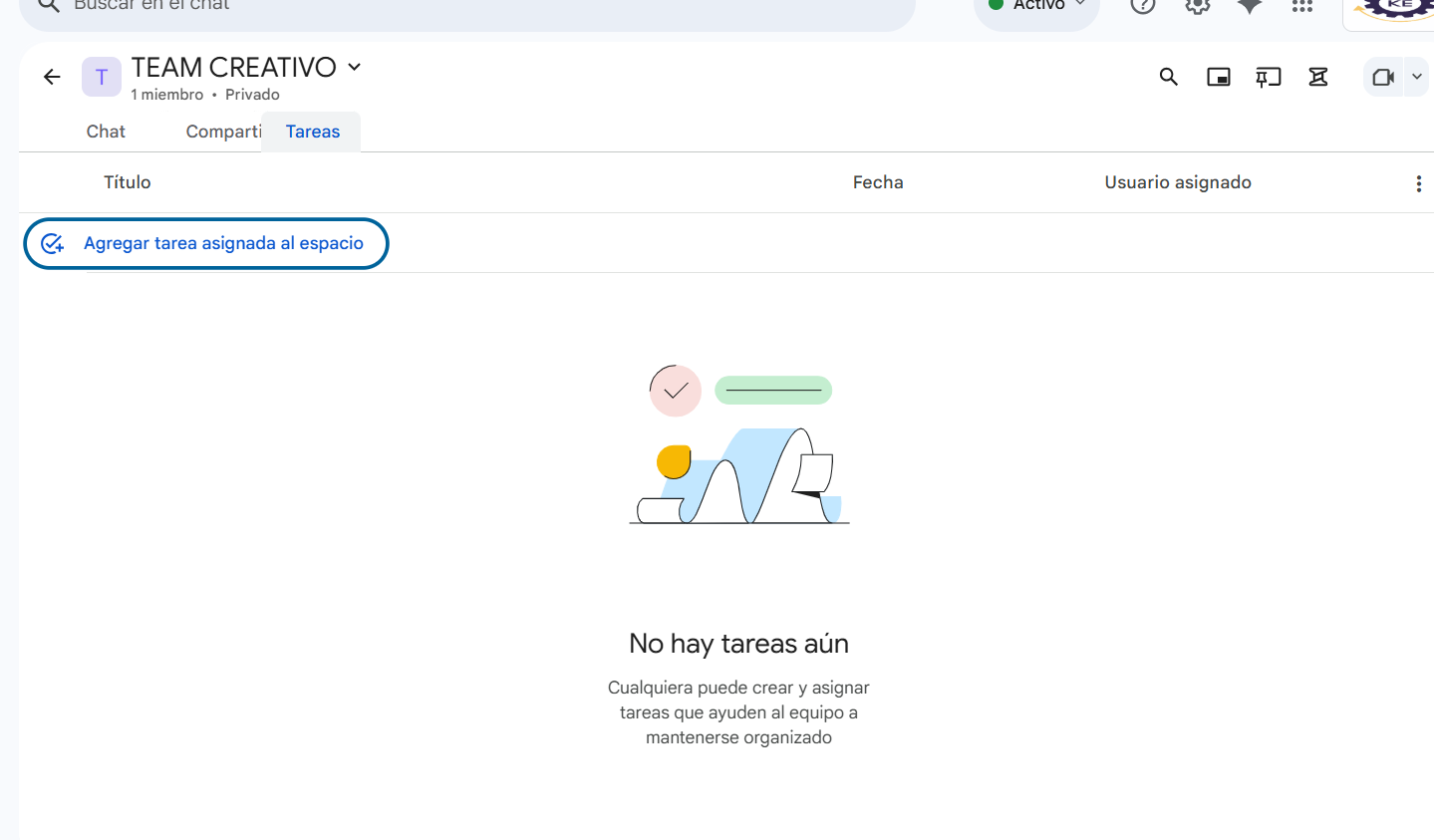
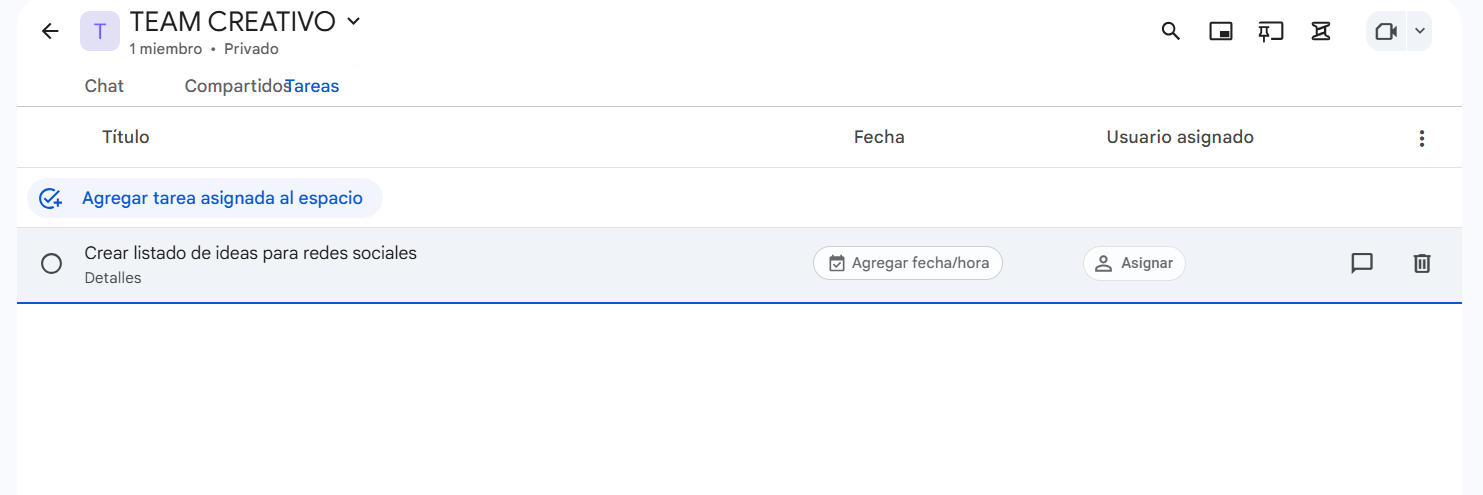
Step 5: Create and Assign Tasks
You can:
-
Write a title (e.g., “Request catering quotes”)
-
Add a due date
-
Assign it to someone in the group
-
Add relevant details or comments
Everything stays organized and centralized in one place.
Advantages of Using This Feature
-
No need for external task management apps
-
Avoid losing information between emails or chats
-
Keep everything in one workspace
-
Each member can mark their task as completed and track team progress
Bonus Tip
Turn on space notifications from your Gmail or mobile app so you’ll know in real time when you’re assigned a task or when updates happen.